
Find your problem in the list, read the quick answer in the green box, and follow the steps. Still stuck? Raise a ticket with the category shown.
Built from about 1,500 support tickets raised by resellers in the last 3 months. Questions are in the order resellers asked them most.
Change a certificate48% of tickets
Adding or removing panels and correcting customer details are the most common reasons for a ticket.
Q1I need to add or remove panels, or change the customer details on a certificate. What do I do?
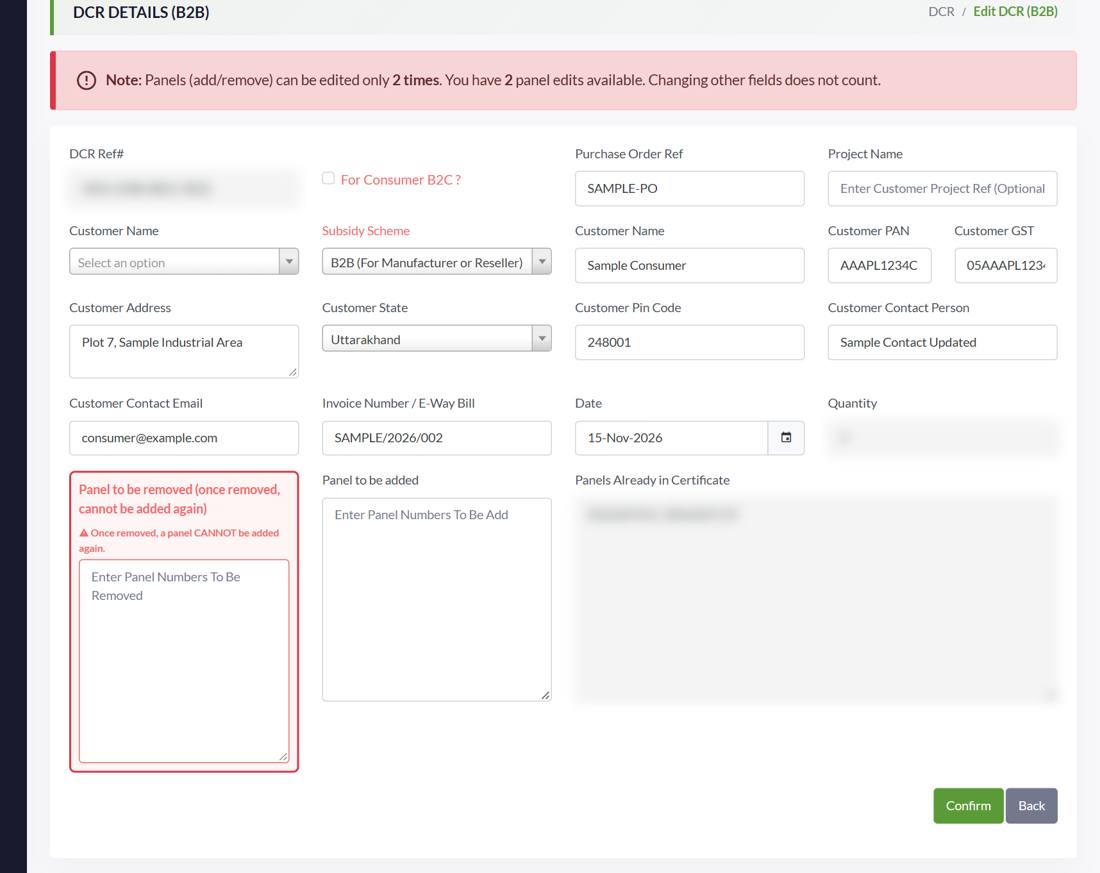
- Open DCR > Sell (B2C - Consumer), or Sell (B2B - Vendor), and search the certificate number.
- If the status is Un-Claimed, press the pencil icon (Edit).
- To remove panels type their numbers in 'Panel to be removed'. To add panels type them in 'Panel to be added'; they must be in your stock. Change the customer details if needed.
- Press Confirm, then Yes. Removed panels return to your stock.
- Status is Claimed? The portal will not let you edit. Follow Q5 first.
B2C Claimed Add Panels / B2C Claimed Remove Panel / B2C Claimed Update Consumer DetailsWrite: Certificate number, consumer application number, panel numbers to add or remove, and a screenshot.
Q2The Edit icon is missing, or the portal says I cannot edit.
- The certificate is Claimed on PMSG. Un-claim it first (Q5). The Edit icon returns afterwards.
- Both panel edits are used. The portal allows adding or removing panels only 2 times for a certificate. After that the support team also replies that no more panel change is possible, so check the numbers carefully before the second edit.
- You are in the wrong list. B2C certificates are under Sell (B2C - Consumer) and B2B under Sell (B2B - Vendor). Use the search box.
- A B2C certificate must keep at least 2 panels after the edit. The portal shows 'For Consumer Certificate (B2C) minimum 2 Qty Required'.
B2C Claimed Update PanelsWrite: Certificate number and what you tried.
Q3I removed a panel by mistake. Can I add it back to the same certificate?
- The removed panel goes back to your branch stock straight away.
- You can use it on a new certificate (Sell > Issue to Consumer or Vendor).
- Before pressing Confirm in Edit, read the 'Panel to be removed' box twice: once removed, it cannot be added again.
Q4I typed a wrong consumer application number, name or mobile number.
- DCR > Sell (B2C - Consumer) > search the certificate > Edit.
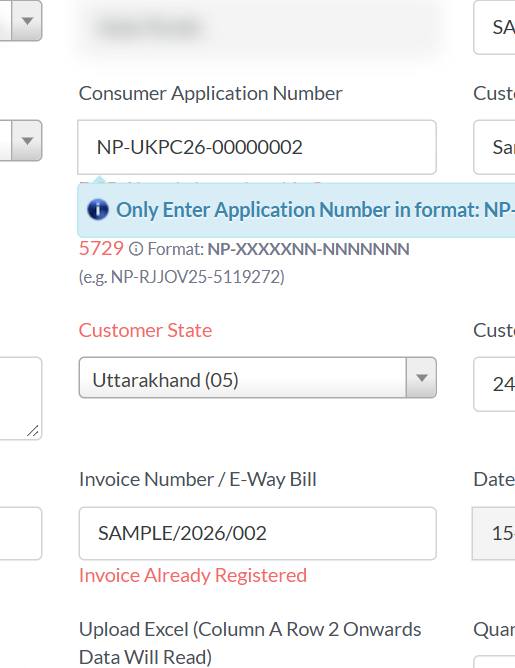
- Correct the Consumer Application Number exactly as it is on the PMSG or PM-KUSUM portal and in the feasibility report: no space, no changed letter.
- The mobile number must be exactly 10 digits. Do not type +91 or spaces.
- Press Confirm, then Yes.
B2C Claimed Update Consumer DetailsWrite: Certificate number, the wrong value and the correct value.
Q5How do I un-claim a certificate on the PMSG portal so that I can edit it?
- Open the PMSG portal and search the consumer application where this DCR certificate was claimed.
- Go to the Installation step of that application.
- Click the Delete icon next to the DCR certificate. This marks it Un-Claimed.
- Come back to the DCR portal. The Edit icon now appears on the certificate (DCR > Sell > search the certificate).
Cancel or return a certificate14% of tickets
A certificate is never cancelled or deleted. You fix it by editing or by returning panels.
Q6The customer denied installation, or I made a wrong certificate. Can I cancel or delete it?
- Un-Claimed certificate: DCR > Sell > search it > Edit, put the panel numbers in 'Panel to be removed', Confirm.
- Claimed on PMSG: un-claim it on PMSG first (Q5), then edit as above.
- You cannot remove every panel. A B2C certificate must keep at least 2 panels. If the whole job is cancelled, edit the consumer details and the panels you still hold, and raise a ticket for the rest.
Cerificate Return/Cancel B2CWrite: Certificate number, the reason, and the panel numbers you want back.
Q7I sent a B2B certificate to the wrong company, or with wrong panels.
- Check the status in DCR > Sell (B2B - Vendor).
- Un-Claimed: press Edit, change the company details or put wrong panels in 'Panel to be removed', Confirm.
- Claimed by the buyer: the buyer opens DCR > Claimed, presses Return on that certificate and selects the panels. They come back to your stock.
- Then issue a new, correct B2B certificate.
Cerificate Return/Cancel B2BWrite: Certificate number, buyer name and what went wrong.
Q8The customer sent back only some panels, or the system size changed.
- Un-Claimed: Edit > 'Panel to be removed' for returned panels, 'Panel to be added' for new ones, in one go (this counts as one edit).
- Claimed on PMSG: un-claim first (Q5).
- Make both changes together so you do not use up both edits.
I cannot create a certificate12% of tickets
Almost every case is stock: panels not claimed, already sold, or in another branch.
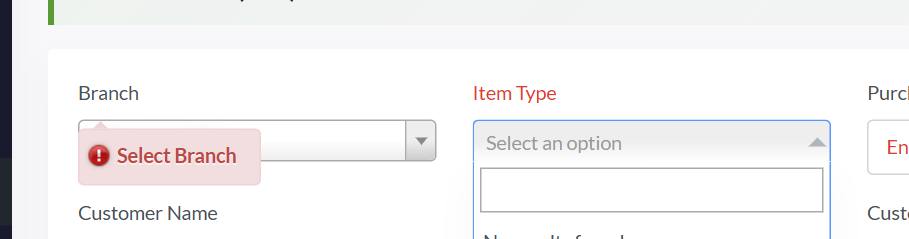
Q9Item Type is empty, or 'Solar Panels' is not shown.
- Choose the Branch first. Without it the portal says 'Select Branch'.
- Check your stock: DCR > Internal Stock Credit > Stock Summary. Is there a Solar Panels row with quantity above zero in that branch?
- Quantity is zero because you have not claimed the certificate your supplier sent: open DCR > Unclaimed and claim it (see the Reseller guide, step 6).
- The stock may be in another branch: choose that branch, or use Branch Transfer.
- All panels may already be sold or returned. Then there is nothing left to sell.
Item Type Not VisibleWrite: A screenshot of Stock Summary and of the Unclaimed list.
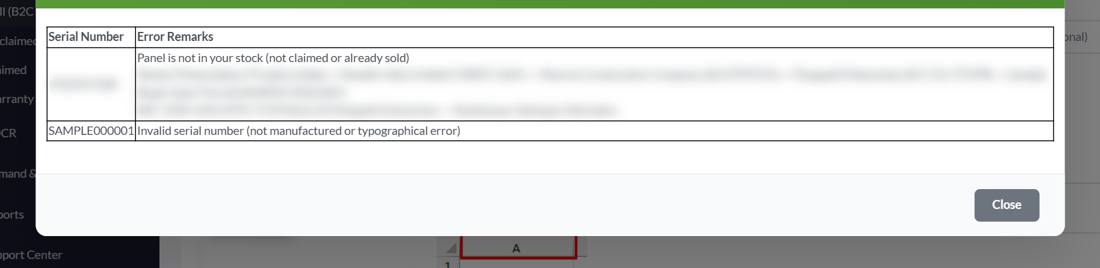
Q10It says 'Panel is not in your stock (not claimed or already sold)'.
- Not claimed yet: look in DCR > Unclaimed. Claim the certificate first. If it is not there, your supplier has not issued the certificate yet: ask the supplier.
- Already sold: the lines under the message show the path of the panel: who made, sold and claimed it, and which certificate it is on. That tells you where it was used.
- Wrong branch: the panel is in another branch of yours. Change the Branch and try again.
- Invoice date too early: the panel reached your stock after your invoice date. Change the invoice date to the day it reached you or later.
- To recheck any panel: Dashboard > Search Panel > type the number > Search.
Panel Serial Number Not In StockWrite: The panel numbers, your branch, and a screenshot of the Error window.
Q11It says 'Invalid serial number (not manufactured or typographical error)'.
- Compare each character with the label on the panel. Watch 0 and O, 1 and I.
- Type the number by hand instead of pasting it. Pasting can bring a special character or a space.
- Use one number on each line, with no commas or dashes you added yourself.
- Still invalid: the manufacturer may not have issued that panel yet. Ask the manufacturer or supplier.
Panel Serial Number Not In StockWrite: The number, a photo of the panel label and your supplier name.
Q12I claimed the certificate from my supplier but cannot sell the panels to my customer.
- Branch: choose the branch you credited the panels into when you claimed.
- Stock: DCR > Internal Stock Credit > Stock Summary must show the quantity (Q9).
- Panel numbers: they must be panels of that certificate and not already sold (Q10).
- Quantity: it must equal the number of panel numbers you typed.
Cannot create DCR CertificateWrite: The error message exactly as shown, and a screenshot.
Q13The portal shows an error while I press Confirm. What does it mean?
- 'DCR Already Issued to this Consumer. Existing DCR Ref#...': that application number already has a certificate. Search the number in the B2C list (DCR > Sell (B2C - Consumer) > Search box) to find it, and edit that one.
- 'Invoice Already Registered': the invoice number was used before. Type a new one.
- 'Quantity entered: X, but serial numbers entered: Y': make the quantity equal to the count of numbers. Duplicate numbers are listed in the message.
- 'Panel already added earlier': the number is twice in the list or already added: remove the repeat.
- 'Panel has been scrapped': the panel is marked scrapped and cannot be sold.
- Mobile number error: type exactly 10 digits, no spaces and no +91.
- 'Required Fields Missing': Remarks and the red-marked fields are compulsory.
PMSG and national portal errors8% of tickets
These errors come from the PMSG portal. The DCR portal cannot see PMSG's own data.
Q14My DCR certificate still shows Un-Claimed although I used it on PMSG.
- Open the certificate in DCR > Sell (B2C - Consumer) and copy its Consumer Application Number.
- On PMSG, open that same application and submit the DCR certificate number in the Installation step.
- If PMSG accepts it, the DCR portal shows Claimed. If the numbers differ, correct the application number in Edit (Q4) and submit again.
B2C Un-Claimed PMSGWrite: Certificate number, application number and the PMSG screen.
Q15PMSG shows 'Certificate is created for A and not for B', error 400, 412 or 'Internal Server Error'.
- Compare the Consumer Application Number on the certificate with the number in the feasibility report or the PMSG application. Look for a space, a missing letter or a swapped digit.
- Un-Claimed: Edit the certificate and correct it (Q4). Claimed: un-claim on PMSG first (Q5).
- Check the consumer mobile number is 10 digits. A 9-digit number has caused 'Internal Server Error'.
- Submit again on PMSG.
B2C National Portal Error 412Write: The exact PMSG message with a screenshot, and the application number you searched.
Q16PMSG says 'repeated serial number', 'duplicate serial number' or 'Panel already exists'.
- Call PMSG customer support on 15555 and give the application number and the repeated panel number.
- Inside the DCR portal a panel that was already used on another certificate cannot be sold again, so a number accepted here was not used twice in DCR.
- If PMSG tells you the number really is wrong, correct it with Edit (Un-Claimed) or after un-claiming (Q5).
B2C Claimed PMSG Repeated NumberWrite: Only if PMSG says the number is wrong: certificate number, panel number, PMSG message.
Q17The DISCOM rejected the application, or the consumer registered with another vendor. What now?
- Un-claim on PMSG (Q5).
- Edit the certificate: change the consumer details to the new application, or remove the panels to put them back in stock (Q6).
- Make a new certificate for the new application with those panels if needed.
B2C Claimed, DISCOM Rejected / B2C Claimed DCR Created by Other VendorWrite: Certificate number, both application numbers and the reason.
Company, users and logo4% of tickets
Some changes you make yourself; the company name, PAN and type need the support team.
Q18How do I change my company name, GST, PAN or company type?
- Support Center > Submit a Support Ticket > category 'Company Profile Updating'.
- Attach the new GST certificate (for a name or GST change) and say clearly what the new name is.
- Wrong company type (for example you registered as a developer and do not see the DCR menu): ask for the correct type in the same ticket.
- A different PAN cannot be edited. The support team asks for a fresh registration with the new PAN and GST.
Company Profile UpdatingWrite: The new GST certificate and the exact new name.
Q19How do I change the address or the logo myself?
- Address: Branch > Branch list > the pencil icon on your branch > Address > Save and Return.
- Logo: Branch > click the round picture under Company Logo > choose a JPG or PNG up to 4 MB > Save.
- A new GST address of the company is also changed here.
Q20Someone else issued certificates from my login. How do I protect it?
- Users > open the user list and switch off anyone who should no longer have access.
- Change your own password: left menu > Change Password.
- Add each employee: Users > Add User. Use Is Admin only for people who may manage users and branches.
- Raise a ticket under 'General Query' with the certificate numbers you do not recognise.
General QueryWrite: The certificate numbers you do not recognise and the dates.
Warranty, lists and getting help12% of tickets
Warranty, where to find a list, and how to write a ticket that is solved in one reply.
Q21Where do I get the warranty certificate for my customer?
- Ask the manufacturer or supplier to update the warranty details for your panels.
- Once they update it, the warranty details show on the portal and go with the DCR certificate: DCR > Warranty Certificate.
Warranty CertificateWrite: Only if the manufacturer says it is already updated: certificate number.
Q22Where is the list of certificates I claimed from my supplier?
- Claimed: certificates you have already claimed. Use the search box and the filters in the header row.
- Unclaimed: certificates sent to you that you have not claimed yet. Claim them to get stock.
- Your sales are in DCR > Sell (B2B - Vendor) and Sell (B2C - Consumer).
Q23How do I write a support ticket that gets solved quickly?
- Support Center > Submit a Support Ticket. Choose the Support Category that matches (the table below).
- Write: what you want done, the DCR certificate number, the consumer application number, the panel numbers, and the exact error text.
- Attach a screenshot of the error, and of the PMSG screen if it is a PMSG problem.
- Do not send a blank ticket. The support team will ask you for a summary first, and that costs a day.
- In a hurry? Call the DCR support number 7041452290 (Monday to Saturday, 9:30 AM to 7:00 PM) and keep the certificate number ready.
Which category to choose for a ticket
| Problem | Support Category |
|---|---|
| Add panels to a claimed certificate | B2C Claimed Add Panels |
| Remove panels from a claimed certificate | B2C Claimed Remove Panel |
| Change panels of a claimed certificate | B2C Claimed Update Panels |
| Change consumer name, mobile or application number | B2C Claimed Update Consumer Details |
| Return or cancel a B2C certificate | Cerificate Return/Cancel B2C |
| Return or cancel a B2B certificate | Cerificate Return/Cancel B2B |
| Customer denied installation | B2C Claimed Customer Denied Installation |
| DISCOM rejected the application | B2C Claimed, DISCOM Rejected |
| Certificate created by another vendor | B2C Claimed DCR Created by Other Vendor |
| PMSG says repeated or duplicate serial number | B2C Claimed PMSG Repeated Number |
| PMSG error 400 or 412 | B2C National Portal Error 412 |
| Status Un-Claimed although used on PMSG | B2C Un-Claimed PMSG |
| Cannot create a certificate | Cannot create DCR Certificate |
| Item Type not shown | Item Type Not Visible |
| Panel not in stock | Panel Serial Number Not In Stock |
| Change company name, GST or type | Company Profile Updating |
| Warranty certificate | Warranty Certificate |
| Anything else | General Query / Others |
Need help? DCR support 7041452290 (Mon-Sat, 9:30 AM - 7:00 PM) | support@dcrverificationportal.com | PMSG customer support 15555
सूची में अपनी समस्या ढूँढें, हरे बॉक्स में तुरंत जवाब पढ़ें और स्टेप करें। फिर भी अटके हैं? दी गई श्रेणी से टिकट डालें।
पिछले 3 महीनों में रीसेलर्स के लगभग 1,500 सपोर्ट टिकट से बनाया गया। प्रश्न उसी क्रम में हैं जिसमें रीसेलर्स ने उन्हें सबसे ज़्यादा पूछा।
सर्टिफिकेट में बदलाव48% टिकट
पैनल जोड़ना या हटाना और ग्राहक की जानकारी सुधारना टिकट का सबसे आम कारण है।
प्र1मुझे सर्टिफिकेट में पैनल जोड़ने या हटाने हैं, या ग्राहक की जानकारी बदलनी है। क्या करूँ?
- DCR > Sell (B2C - Consumer) या Sell (B2B - Vendor) खोलें और सर्टिफिकेट नंबर खोजें।
- स्थिति Un-Claimed हो तो पेंसिल आइकन (Edit) दबाएं।
- पैनल हटाने के लिए उनके नंबर 'Panel to be removed' में लिखें। पैनल जोड़ने के लिए 'Panel to be added' में लिखें; वे आपके स्टॉक में होने चाहिए। ज़रूरत हो तो ग्राहक की जानकारी बदलें।
- Confirm दबाएं, फिर Yes। हटाए गए पैनल आपके स्टॉक में लौट आते हैं।
- स्थिति Claimed है? पोर्टल एडिट नहीं करने देगा। पहले Q5 करें।
B2C Claimed Add Panels / B2C Claimed Remove Panel / B2C Claimed Update Consumer Detailsलिखें: सर्टिफिकेट नंबर, कंज्यूमर एप्लिकेशन नंबर, जोड़ने या हटाने के पैनल नंबर और स्क्रीनशॉट।
प्र2Edit आइकन नहीं दिख रहा, या पोर्टल कहता है कि एडिट नहीं हो सकता।
- सर्टिफिकेट PMSG पर Claimed है। पहले अन-क्लेम करें (Q5)। उसके बाद Edit आइकन लौट आता है।
- दोनों पैनल-एडिट इस्तेमाल हो चुके हैं। पोर्टल एक सर्टिफिकेट में पैनल केवल 2 बार जोड़ने या हटाने देता है। उसके बाद सपोर्ट टीम भी यही जवाब देती है कि पैनल में और बदलाव संभव नहीं, इसलिए दूसरे एडिट से पहले नंबर ध्यान से जाँचें।
- आप गलत सूची में हैं। B2C सर्टिफिकेट Sell (B2C - Consumer) में और B2B Sell (B2B - Vendor) में होते हैं। सर्च बॉक्स इस्तेमाल करें।
- एडिट के बाद B2C सर्टिफिकेट में कम से कम 2 पैनल रहने चाहिए। पोर्टल 'For Consumer Certificate (B2C) minimum 2 Qty Required' दिखाता है।
B2C Claimed Update Panelsलिखें: सर्टिफिकेट नंबर और आपने क्या कोशिश की।
प्र3मैंने गलती से पैनल हटा दिया। क्या उसे उसी सर्टिफिकेट में वापस जोड़ सकता हूँ?
- हटाया गया पैनल तुरंत आपकी ब्रांच के स्टॉक में लौट आता है।
- आप उसे नए सर्टिफिकेट (Sell > Issue to Consumer या Vendor) में इस्तेमाल कर सकते हैं।
- Edit में Confirm से पहले 'Panel to be removed' बॉक्स दो बार पढ़ें: एक बार हटने के बाद वह दोबारा नहीं जुड़ता।
प्र4मैंने कंज्यूमर एप्लिकेशन नंबर, नाम या मोबाइल नंबर गलत लिख दिया।
- DCR > Sell (B2C - Consumer) > सर्टिफिकेट खोजें > Edit।
- Consumer Application Number ठीक वैसा लिखें जैसा PMSG या PM-KUSUM पोर्टल और फिज़िबिलिटी रिपोर्ट में है: कोई स्पेस नहीं, कोई अक्षर नहीं बदला हुआ।
- मोबाइल नंबर ठीक 10 अंकों का हो। +91 या स्पेस न लिखें।
- Confirm दबाएं, फिर Yes।
B2C Claimed Update Consumer Detailsलिखें: सर्टिफिकेट नंबर, गलत वैल्यू और सही वैल्यू।
प्र5एडिट करने के लिए PMSG पोर्टल पर सर्टिफिकेट अन-क्लेम कैसे करूँ?
- PMSG पोर्टल खोलें और वह कंज्यूमर एप्लिकेशन खोजें जिसमें यह DCR सर्टिफिकेट क्लेम किया गया था।
- उस एप्लिकेशन के Installation स्टेप पर जाएं।
- DCR सर्टिफिकेट के पास Delete आइकन दबाएं। इससे वह Un-Claimed हो जाता है।
- DCR पोर्टल पर लौटें। अब सर्टिफिकेट पर Edit आइकन दिखेगा (DCR > Sell > सर्टिफिकेट खोजें)।
सर्टिफिकेट रद्द या वापस करना14% टिकट
सर्टिफिकेट कभी रद्द या डिलीट नहीं होता। उसे एडिट करके या पैनल वापस करके ठीक किया जाता है।
प्र6ग्राहक ने इंस्टॉलेशन मना कर दिया, या मुझसे गलत सर्टिफिकेट बन गया। क्या रद्द या डिलीट कर सकता हूँ?
- Un-Claimed सर्टिफिकेट: DCR > Sell > खोजें > Edit, पैनल नंबर 'Panel to be removed' में डालें, Confirm।
- PMSG पर Claimed: पहले PMSG पर अन-क्लेम करें (Q5), फिर ऊपर की तरह एडिट करें।
- आप सारे पैनल नहीं हटा सकते। B2C सर्टिफिकेट में कम से कम 2 पैनल रहने चाहिए। पूरा काम रद्द हो तो बचे पैनल और ग्राहक की जानकारी एडिट करें और बाकी के लिए टिकट डालें।
Cerificate Return/Cancel B2Cलिखें: सर्टिफिकेट नंबर, कारण और जो पैनल वापस चाहिए उनके नंबर।
प्र7मैंने B2B सर्टिफिकेट गलत कंपनी को या गलत पैनल के साथ भेज दिया।
- DCR > Sell (B2B - Vendor) में स्थिति देखें।
- Un-Claimed: Edit दबाएं, कंपनी की जानकारी बदलें या गलत पैनल 'Panel to be removed' में डालें, Confirm।
- खरीदार ने क्लेम किया: खरीदार DCR > Claimed खोलकर उस सर्टिफिकेट पर Return दबाए और पैनल चुने। वे आपके स्टॉक में लौट आते हैं।
- फिर सही B2B सर्टिफिकेट नया बनाएं।
Cerificate Return/Cancel B2Bलिखें: सर्टिफिकेट नंबर, खरीदार का नाम और क्या गलत हुआ।
प्र8ग्राहक ने कुछ ही पैनल लौटाए, या सिस्टम का साइज़ बदल गया।
- Un-Claimed: Edit > लौटे पैनल 'Panel to be removed' में और नए 'Panel to be added' में, एक ही बार में (यह एक एडिट गिना जाता है)।
- PMSG पर Claimed: पहले अन-क्लेम करें (Q5)।
- दोनों बदलाव साथ करें ताकि दोनों एडिट खर्च न हों।
सर्टिफिकेट नहीं बन रहा12% टिकट
लगभग हर मामला स्टॉक का होता है: पैनल क्लेम नहीं हुए, पहले बिक चुके, या दूसरी ब्रांच में हैं।
प्र9Item Type खाली है, या 'Solar Panels' नहीं दिख रहा।
- पहले Branch चुनें। इसके बिना पोर्टल 'Select Branch' कहता है।
- स्टॉक देखें: DCR > Internal Stock Credit > Stock Summary। क्या उस ब्रांच में Solar Panels की पंक्ति में मात्रा शून्य से अधिक है?
- मात्रा शून्य है क्योंकि आपने सप्लायर का भेजा सर्टिफिकेट क्लेम नहीं किया: DCR > Unclaimed खोलकर क्लेम करें (रीसेलर गाइड, चरण 6)।
- स्टॉक दूसरी ब्रांच में हो सकता है: वह ब्रांच चुनें, या Branch Transfer इस्तेमाल करें।
- सारे पैनल पहले ही बिक चुके या लौटा दिए हों। तब बेचने के लिए कुछ नहीं बचा।
Item Type Not Visibleलिखें: Stock Summary और Unclaimed सूची का स्क्रीनशॉट।
प्र10संदेश आता है 'Panel is not in your stock (not claimed or already sold)'।
- अभी क्लेम नहीं हुआ: DCR > Unclaimed देखें। पहले सर्टिफिकेट क्लेम करें। वहाँ न हो तो सप्लायर ने अभी सर्टिफिकेट जारी नहीं किया: सप्लायर से पूछें।
- पहले बिक चुका: संदेश के नीचे की पंक्तियाँ पैनल का रास्ता दिखाती हैं: किसने बनाया, बेचा, क्लेम किया और वह किस सर्टिफिकेट पर है। इससे पता चलता है वह कहाँ इस्तेमाल हुआ।
- गलत ब्रांच: पैनल आपकी दूसरी ब्रांच में है। Branch बदलकर दोबारा कोशिश करें।
- इनवॉइस की तारीख बहुत पहले की है: पैनल आपके इनवॉइस की तारीख के बाद आपके स्टॉक में आया। इनवॉइस की तारीख उस दिन या बाद की रखें।
- किसी भी पैनल की दोबारा जाँच: Dashboard > Search Panel > नंबर लिखें > Search।
Panel Serial Number Not In Stockलिखें: पैनल नंबर, आपकी ब्रांच और Error विंडो का स्क्रीनशॉट।
प्र11संदेश आता है 'Invalid serial number (not manufactured or typographical error)'।
- हर अक्षर पैनल के लेबल से मिलाएं। 0 और O, 1 और I पर ध्यान दें।
- नंबर पेस्ट करने के बजाय हाथ से टाइप करें। पेस्ट में खास अक्षर या स्पेस आ सकता है।
- हर लाइन में एक नंबर लिखें, अपनी तरफ से कॉमा या डैश न जोड़ें।
- फिर भी Invalid: हो सकता है निर्माता ने वह पैनल अभी जारी नहीं किया। निर्माता या सप्लायर से पूछें।
Panel Serial Number Not In Stockलिखें: नंबर, पैनल के लेबल की फोटो और सप्लायर का नाम।
प्र12मैंने सप्लायर का सर्टिफिकेट क्लेम कर लिया पर ग्राहक को पैनल नहीं बेच पा रहा।
- Branch: वही ब्रांच चुनें जिसमें क्लेम करते समय पैनल क्रेडिट किए थे।
- स्टॉक: DCR > Internal Stock Credit > Stock Summary में मात्रा दिखनी चाहिए (Q9)।
- पैनल नंबर: वे उसी सर्टिफिकेट के हों और पहले बिके न हों (Q10)।
- मात्रा: वह आपके लिखे पैनल नंबरों की संख्या के बराबर हो।
Cannot create DCR Certificateलिखें: एरर संदेश जैसा दिखे वैसा, और स्क्रीनशॉट।
प्र13Confirm दबाते समय पोर्टल एरर दिखाता है। इसका मतलब क्या है?
- 'DCR Already Issued to this Consumer. Existing DCR Ref#...': उस एप्लिकेशन नंबर का सर्टिफिकेट बन चुका है। B2C सूची में (DCR > Sell (B2C - Consumer) > Search बॉक्स) नंबर खोजकर उसे ढूँढें और वही एडिट करें।
- 'Invoice Already Registered': यह इनवॉइस नंबर पहले इस्तेमाल हो चुका है। नया लिखें।
- 'Quantity entered: X, but serial numbers entered: Y': मात्रा को नंबरों की गिनती के बराबर करें। दोहराए नंबर संदेश में दिखाए जाते हैं।
- 'Panel already added earlier': नंबर सूची में दो बार है या पहले जोड़ा जा चुका है: दोहराव हटाएं।
- 'Panel has been scrapped': पैनल स्क्रैप चिह्नित है और बेचा नहीं जा सकता।
- मोबाइल नंबर एरर: ठीक 10 अंक लिखें, स्पेस या +91 नहीं।
- 'Required Fields Missing': Remarks और लाल निशान वाली फील्ड अनिवार्य हैं।
PMSG और नेशनल पोर्टल की एरर8% टिकट
ये एरर PMSG पोर्टल से आती हैं। DCR पोर्टल PMSG का अपना डेटा नहीं देख सकता।
प्र14मैंने PMSG पर इस्तेमाल किया पर DCR सर्टिफिकेट अब भी Un-Claimed दिखता है।
- DCR > Sell (B2C - Consumer) में सर्टिफिकेट खोलकर उसका Consumer Application Number कॉपी करें।
- PMSG पर वही एप्लिकेशन खोलें और Installation स्टेप में DCR सर्टिफिकेट नंबर सबमिट करें।
- PMSG स्वीकार करे तो DCR पोर्टल Claimed दिखाता है। नंबर अलग हों तो Edit में एप्लिकेशन नंबर सुधारें (Q4) और दोबारा सबमिट करें।
B2C Un-Claimed PMSGलिखें: सर्टिफिकेट नंबर, एप्लिकेशन नंबर और PMSG की स्क्रीन।
प्र15PMSG में 'Certificate is created for A and not for B', एरर 400, 412 या 'Internal Server Error' आता है।
- सर्टिफिकेट के Consumer Application Number को फिज़िबिलिटी रिपोर्ट या PMSG एप्लिकेशन के नंबर से मिलाएं। स्पेस, छूटा अक्षर या बदले अंक देखें।
- Un-Claimed: सर्टिफिकेट Edit करके सुधारें (Q4)। Claimed: पहले PMSG पर अन-क्लेम करें (Q5)।
- जाँचें कि कंज्यूमर मोबाइल नंबर 10 अंकों का है। 9 अंकों का नंबर 'Internal Server Error' दे चुका है।
- PMSG पर दोबारा सबमिट करें।
B2C National Portal Error 412लिखें: PMSG का सटीक संदेश स्क्रीनशॉट के साथ, और आपने जो एप्लिकेशन नंबर खोजा।
प्र16PMSG कहता है 'repeated serial number', 'duplicate serial number' या 'Panel already exists'।
- PMSG कस्टमर सपोर्ट को 15555 पर कॉल करें और एप्लिकेशन नंबर व दोहराया पैनल नंबर बताएं।
- DCR पोर्टल में दूसरे सर्टिफिकेट पर इस्तेमाल हुआ पैनल दोबारा नहीं बिक सकता, इसलिए यहाँ स्वीकार हुआ नंबर DCR में दो बार इस्तेमाल नहीं हुआ।
- PMSG कहे कि नंबर सच में गलत है, तो Edit (Un-Claimed) से या अन-क्लेम (Q5) के बाद सुधारें।
B2C Claimed PMSG Repeated Numberलिखें: केवल तब जब PMSG कहे नंबर गलत है: सर्टिफिकेट नंबर, पैनल नंबर, PMSG का संदेश।
प्र17DISCOM ने आवेदन रद्द कर दिया, या उपभोक्ता ने दूसरे वेंडर से रजिस्टर किया। अब क्या?
- PMSG पर अन-क्लेम करें (Q5)।
- सर्टिफिकेट Edit करें: ग्राहक की जानकारी नए आवेदन की करें, या पैनल हटाकर स्टॉक में वापस लें (Q6)।
- ज़रूरत हो तो उन पैनलों से नए आवेदन के लिए नया सर्टिफिकेट बनाएं।
B2C Claimed, DISCOM Rejected / B2C Claimed DCR Created by Other Vendorलिखें: सर्टिफिकेट नंबर, दोनों एप्लिकेशन नंबर और कारण।
कंपनी, यूज़र और लोगो4% टिकट
कुछ बदलाव आप खुद करते हैं; कंपनी का नाम, PAN और टाइप के लिए सपोर्ट टीम चाहिए।
प्र18कंपनी का नाम, GST, PAN या कंपनी टाइप कैसे बदलूँ?
- Support Center > Submit a Support Ticket > श्रेणी 'Company Profile Updating'।
- नया GST सर्टिफिकेट जोड़ें (नाम या GST बदलने के लिए) और साफ लिखें कि नया नाम क्या है।
- कंपनी टाइप गलत है (जैसे डेवलपर के रूप में रजिस्टर किया और DCR मेनू नहीं दिखता): उसी टिकट में सही टाइप माँगें।
- अलग PAN एडिट नहीं हो सकता। सपोर्ट टीम नए PAN और GST से नया रजिस्ट्रेशन करने को कहती है।
Company Profile Updatingलिखें: नया GST सर्टिफिकेट और नया नाम ठीक वैसा जैसा चाहिए।
प्र19पता या लोगो खुद कैसे बदलूँ?
- पता: Branch > Branch list > अपनी ब्रांच का पेंसिल आइकन > Address > Save & Return।
- लोगो: Branch > Company Logo के नीचे गोल तस्वीर पर क्लिक करें > JPG या PNG (अधिकतम 4 MB) चुनें > Save।
- कंपनी का नया GST पता भी यहीं बदला जाता है।
प्र20किसी और ने मेरे लॉगिन से सर्टिफिकेट जारी कर दिए। उसे सुरक्षित कैसे रखूँ?
- Users > यूज़र सूची खोलें और जिसे अब एक्सेस नहीं चाहिए उसे बंद करें।
- अपना पासवर्ड बदलें: बायां मेनू > Change Password।
- हर कर्मचारी जोड़ें: Users > Add User। Is Admin केवल उन्हें दें जो यूज़र और ब्रांच संभाल सकते हैं।
- 'General Query' में उन सर्टिफिकेट नंबरों के साथ टिकट डालें जिन्हें आप नहीं पहचानते।
General Queryलिखें: वे सर्टिफिकेट नंबर जिन्हें आप नहीं पहचानते और तारीखें।
वारंटी, सूचियाँ और मदद12% टिकट
वारंटी, कौन सी सूची कहाँ है, और ऐसा टिकट कैसे लिखें जो एक ही जवाब में हल हो।
प्र21ग्राहक के लिए वारंटी सर्टिफिकेट कहाँ से मिलेगा?
- निर्माता या सप्लायर से अपने पैनलों की वारंटी जानकारी अपडेट करने को कहें।
- वे अपडेट कर दें तो वारंटी की जानकारी पोर्टल पर दिखती है और DCR सर्टिफिकेट के साथ जाती है: DCR > Warranty Certificate।
Warranty Certificateलिखें: केवल तब जब निर्माता कहे कि अपडेट हो चुका: सर्टिफिकेट नंबर।
प्र22सप्लायर से क्लेम किए सर्टिफिकेट की सूची कहाँ है?
- Claimed: जो सर्टिफिकेट आप क्लेम कर चुके हैं। सर्च बॉक्स और हेडर की फिल्टर पंक्ति इस्तेमाल करें।
- Unclaimed: आपको भेजे गए जो अभी क्लेम नहीं हुए। स्टॉक पाने के लिए इन्हें क्लेम करें।
- आपकी बिक्री DCR > Sell (B2B - Vendor) और Sell (B2C - Consumer) में है।
प्र23ऐसा सपोर्ट टिकट कैसे लिखूँ जो जल्दी हल हो?
- Support Center > Submit a Support Ticket। मेल खाती Support Category चुनें (नीचे की तालिका)।
- लिखें: आप क्या करवाना चाहते हैं, DCR सर्टिफिकेट नंबर, कंज्यूमर एप्लिकेशन नंबर, पैनल नंबर और एरर का सटीक पाठ।
- एरर का स्क्रीनशॉट जोड़ें, और PMSG की समस्या हो तो PMSG स्क्रीन का भी।
- खाली टिकट न भेजें। सपोर्ट टीम पहले सारांश माँगेगी और इसमें एक दिन लग जाता है।
- जल्दी है? DCR सपोर्ट नंबर 7041452290 पर कॉल करें (सोमवार से शनिवार, सुबह 9:30 से शाम 7:00) और सर्टिफिकेट नंबर तैयार रखें।
टिकट के लिए कौन सी श्रेणी चुनें
| समस्या | Support Category |
|---|---|
| क्लेम हुए सर्टिफिकेट में पैनल जोड़ना | B2C Claimed Add Panels |
| क्लेम हुए सर्टिफिकेट से पैनल हटाना | B2C Claimed Remove Panel |
| क्लेम हुए सर्टिफिकेट के पैनल बदलना | B2C Claimed Update Panels |
| उपभोक्ता का नाम, मोबाइल या एप्लिकेशन नंबर बदलना | B2C Claimed Update Consumer Details |
| B2C सर्टिफिकेट वापस या रद्द करना | Cerificate Return/Cancel B2C |
| B2B सर्टिफिकेट वापस या रद्द करना | Cerificate Return/Cancel B2B |
| ग्राहक ने इंस्टॉलेशन मना किया | B2C Claimed Customer Denied Installation |
| DISCOM ने आवेदन रद्द किया | B2C Claimed, DISCOM Rejected |
| दूसरे वेंडर ने सर्टिफिकेट बना दिया | B2C Claimed DCR Created by Other Vendor |
| PMSG कहता है सीरियल नंबर दोहराया है | B2C Claimed PMSG Repeated Number |
| PMSG एरर 400 या 412 | B2C National Portal Error 412 |
| PMSG पर इस्तेमाल के बाद भी Un-Claimed | B2C Un-Claimed PMSG |
| सर्टिफिकेट नहीं बन रहा | Cannot create DCR Certificate |
| Item Type नहीं दिख रहा | Item Type Not Visible |
| पैनल स्टॉक में नहीं | Panel Serial Number Not In Stock |
| कंपनी का नाम, GST या टाइप बदलना | Company Profile Updating |
| वारंटी सर्टिफिकेट | Warranty Certificate |
| कुछ और | General Query / Others |
सहायता चाहिए? DCR सपोर्ट 7041452290 (सोम-शनि, सुबह 9:30 - शाम 7:00) | support@dcrverificationportal.com | PMSG कस्टमर सपोर्ट 15555