
Find your problem in the list, read the quick answer in the green box, and follow the steps. Still stuck? Raise a ticket with the category shown.
Built from the support tickets cell manufacturers raised in the last 180 days (about 140 about cell work). Sections are in the order they were asked most.
Wafer and raw material uploads34% of tickets
Waiting for approval, rejections and opening stock are the most common reasons for a ticket.
Q1My BOE or raw material entry shows Pending. When will it be approved?
- Check the Status column in DCR > Wafers / Thin Glass Purchase or DCR > Raw Material Purchase.
- Upload early. A purchase that is still Pending is not counted in Wafer to Cell.
- A complete, readable document with the numbers typed exactly as printed is approved fastest (see Q3 and Q4).
- You can reply to the email you received after uploading if you need to add something.

Q2My upload was rejected. Where do I see why?
- Open the list, find the row in red with status Rejected and read Approval Remarks.
- The usual reasons: wrong or incomplete document, number or date not typed as printed, wrong quantity or unit, wrong item type, missing E-Way Bill.
- Press Add BOE or Add Raw Material Purchase and enter it again correctly. A rejected entry cannot be edited.
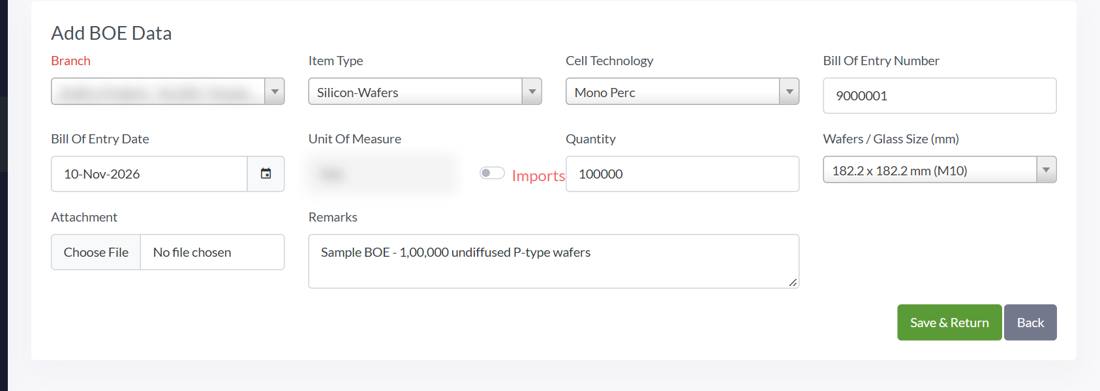
Q3What exactly must I upload for a wafer BOE?
- Branch where the wafers arrived, Item Type Silicon-Wafers, the right Cell Technology and wafer size.
- BOE number: numbers only, no extra text or special characters. BOE date: the date on the BOE, not the invoice date.
- Quantity: the exact number of wafers on the BOE. Do not remove wastage yourself (see Q6).
- Only raw, undiffused wafers with HSN code 38180010 are accepted. If the BOE description does not show it, attach a supporting document.
- No BOE for this purchase? Attach the invoice with a signed and stamped self-declaration that there is no BOE.
Q4What must I upload for a raw material purchase? Which unit do I use?
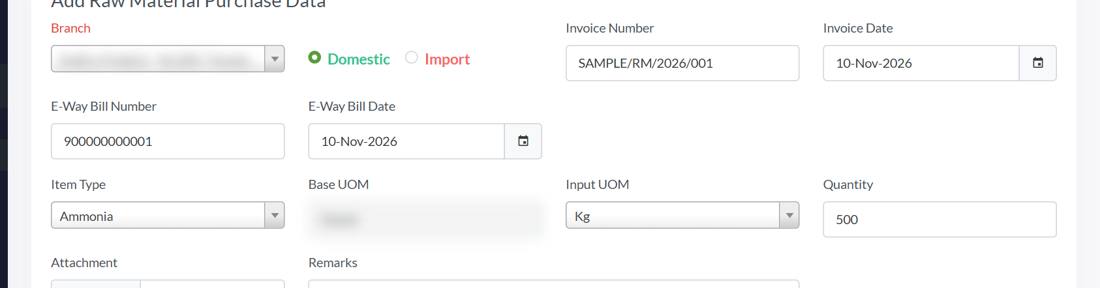
- Choose Domestic or Import first; the box names change to Invoice or BOE.
- Type the invoice, challan or BOE number exactly as printed, with its dashes, and the 12 digit E-Way Bill number for a domestic purchase.
- Choose the item as described on the invoice, for example Front Silver Paste Mono Perc or TopCon.
- Front and busbar paste go together in one entry, because the portal treats both as front silver paste; the same for rear paste.
- Choose the input unit, Kg or Grams. The portal stores chemicals and pastes in grams and RCA cleaning additive in ml.
Q5How do I upload my opening stock of raw materials? What is the MIS report?
- Open DCR > Raw Material Purchase > Add Raw Material Purchase.
- One entry per material, imported and local quantities together. Do not split it into several invoices, and do not submit the same material twice.
- The MIS report is your ERP stock report showing the closing balance of the material on the cut-off date, with about one month of transactions, saved as PDF.
- Purchases dated after the cut-off go in as separate entries with their own invoice and E-Way Bill.
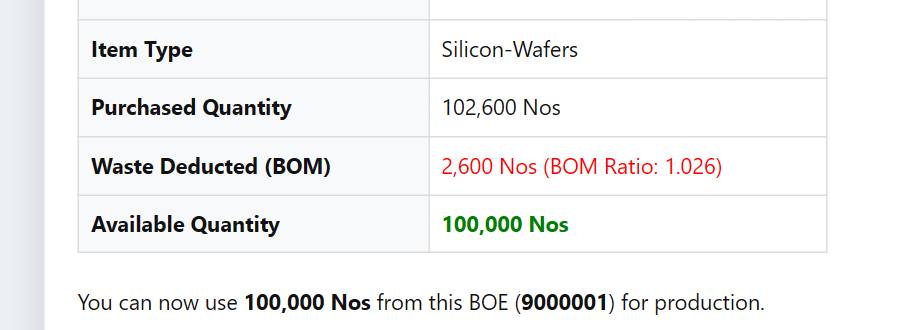
Q6Quantity Available of my wafer BOE is lower than what I bought, and I see BOM Wafer Consumption. Why?
- Example: 1,02,600 standard Mono PERC wafers leave 1,00,000 to convert.
- The approval email shows Purchased Quantity, Waste Deducted (BOM) in red and Available Quantity in green.
- In the BOE list press Transaction: the first line, BOE Approval - BOM Wafer Consumption, is this wastage. Every later line is a Wafer to Cell or a reverse.
Q7I uploaded a wrong document or wrong quantity. Can I change it?
- Raise a ticket with the BOE or invoice number and what is wrong.
- After it is rejected, add the purchase again with the right file and values.
Transaction IssueWrite: BOE or invoice number, what was wrong, and the correct document.
Q8My wafer size is not in the list.
- The size matters: raw material use is scaled by wafer area compared with the standard size of the technology.
Certificates you issued32% of tickets
Cancelling, correcting and addresses on certificates come next.
Q9Please cancel or delete a certificate I issued by mistake.
- Open DCR > Sell (B2B - Vendor) and search the certificate.
- Un-Claimed: press the pencil icon and correct it.
- Claimed: ask the buyer to return it from DCR > Claimed on their login; the cells come back to your stock.

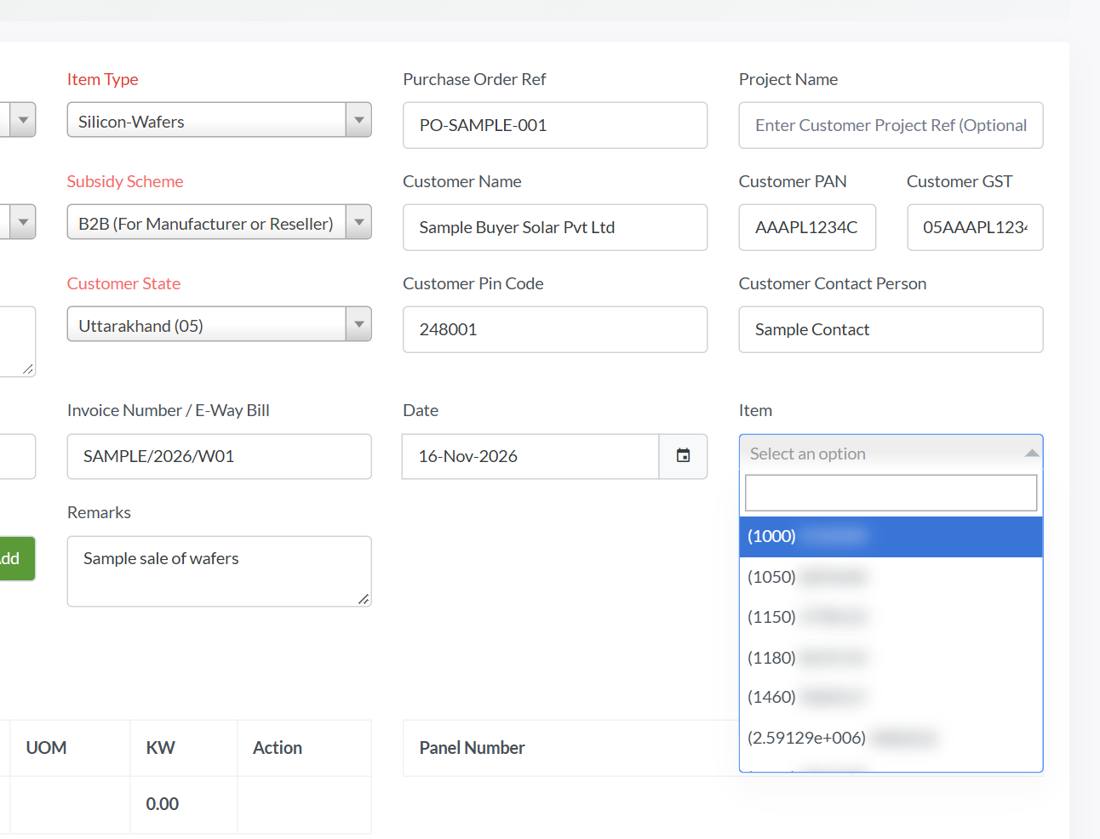
Q10Can we issue a certificate for wafers or raw materials? Or a B2C certificate?
- DCR > Sell (B2B - Vendor) > Issue to Vendor. Choose Item Type Solar Cells, Silicon-Wafers or the raw material.
- For wafers and raw materials, Item lists your approved purchases with a balance; choose one and type a quantity up to its balance, then Add.
- Fill in the buyer and invoice, press Confirm and Yes. The quantity leaves that purchase and your stock.
Q11The portal does not let me edit a certificate any more.
- The red note at the top of the Edit page shows how many item edits are left.
- Other details, such as the PO reference or contact person, can still be changed while it is Un-Claimed.
- Check the quantities carefully before the second item edit.
Q12The buyer's address on the certificate is wrong.
- If the buyer has no branch for that state, ask them to add it on their login; until then the address of their PAN is used.
- To change the buyer's GST or PAN, send the GST and PAN documents to support.
Update/Change Customer Information in CertificateWrite: Certificate number and the GST document with the correct address.
Q13Which cell model is printed on the certificate?
- The portal does not change it later. Choose the right model in every Wafer to Cell entry.
- A wrong model on a conversion: reverse that conversion while the cells are in stock and enter it again (Q21).
ALMM II model and item not showing17% of tickets
Nearly every 'item not visible' ticket is explained by the ALMM II range.
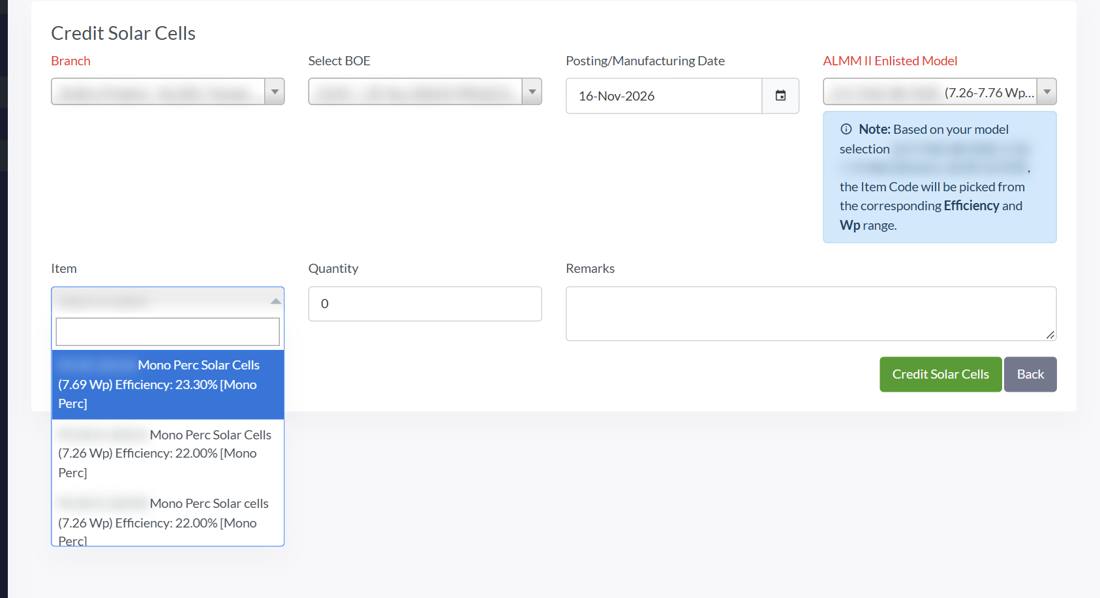
Q14My cell item code does not show in Wafer to Cell.
- Choose the model first; the range is written next to its name, for example 7.26 to 7.76 Wp, efficiency 22.00 to 23.50 percent.
- Open Items and check the Wp, efficiency and cell technology of your item.
- If you have several models, try the other model: the item may belong to that one.
- A wrong value in the item? Create a new item with the right Wp and efficiency.
Q15We now make cells above the efficiency of our ALMM II model. Can you allow them?
- Apply to MNRE for the revision of your enlistment.
- After the revised ALMM List-II is published, raise a ticket with the office memorandum so NISE can update your model.
Item Type Not VisibleWrite: The ALMM List-II office memorandum and the model with its new range.
Q16A new model of ours (for example G12R) is enlisted in ALMM List-II but not in the portal.
- You cannot add or change a model yourself.
- Wafer BOEs for that model's wafers can be approved only once the model is in the portal.
Item Type Not VisibleWrite: Model name, technology, Wp and efficiency range, and the ALMM List-II memorandum.
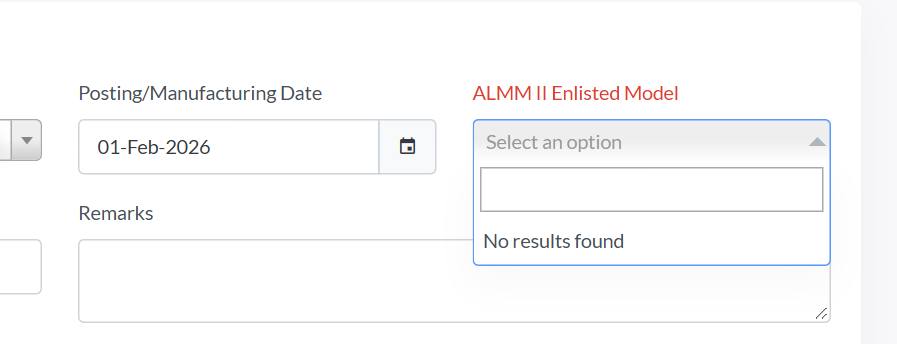
Q17The ALMM II Enlisted Model list is empty.
- Choose the BOE first, then the posting date; the model list is filled from both.
- Try a date inside the validity period of your model.
- Check the Cell Technology written on the BOE; a TopCon BOE shows only TopCon models.
- Still empty: ask support to check the dates and technology of your model.
Wafer to Cell and stock7% of tickets
Stock errors and reversals.
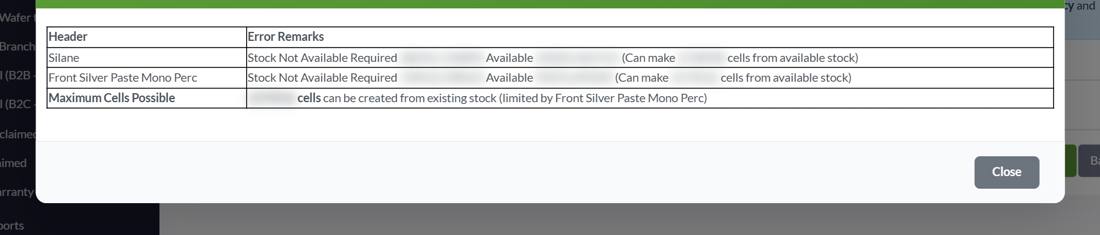
Q18Wafer to Cell says a raw material is not available, but we have it.
- Check that you chose the branch where the material was uploaded.
- Check that the purchase is Approved, not Pending.
- Read the error window: Required, Available and how many cells the material allows. Lower the quantity or upload the missing purchase.
- Material is in another branch? Move it with Branch Transfer.
Q19How do I check how much raw material was consumed?
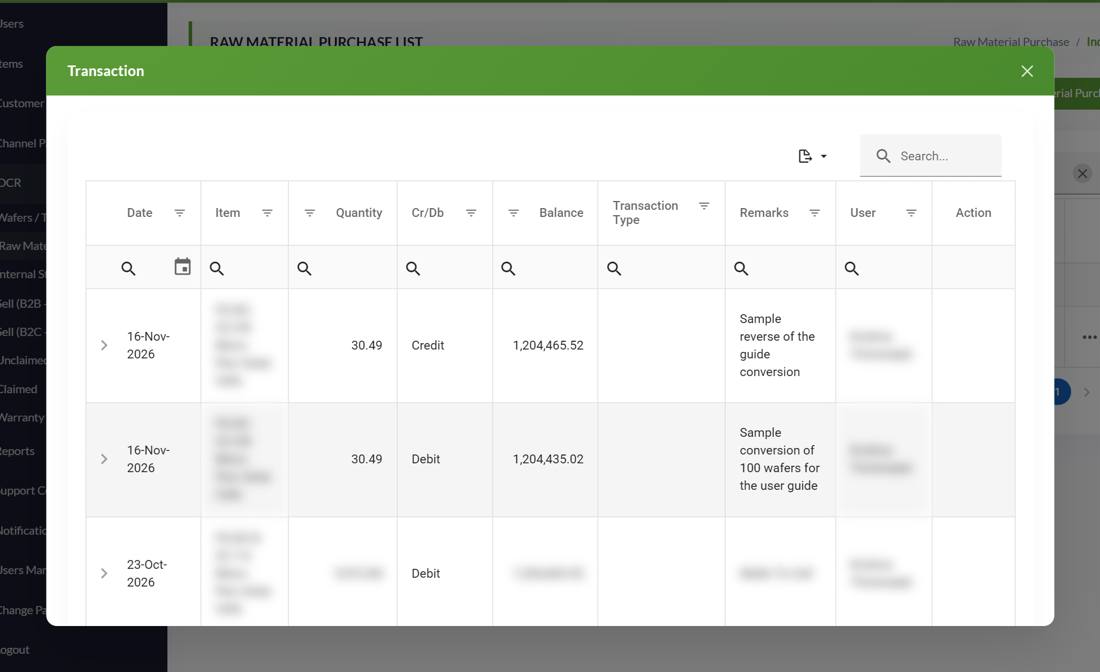
- Stock Summary: search the material and press Transaction. Each line is one purchase; Quantity minus Balance is what has been consumed from it.
- Raw Material Purchase list: press Transaction on an invoice to see every Wafer to Cell entry that used it, with the exact quantity.
- Each conversion uses: consumption per cell set by NISE, times the wafer size factor, times the wafers. Example for 100 Mono PERC cells on 182.2 x 182.2 mm wafers: Ammonia 30.49 g.
- Materials are taken from the oldest approved purchase first.
Q20How do I move cells, wafers or a raw material to another branch?
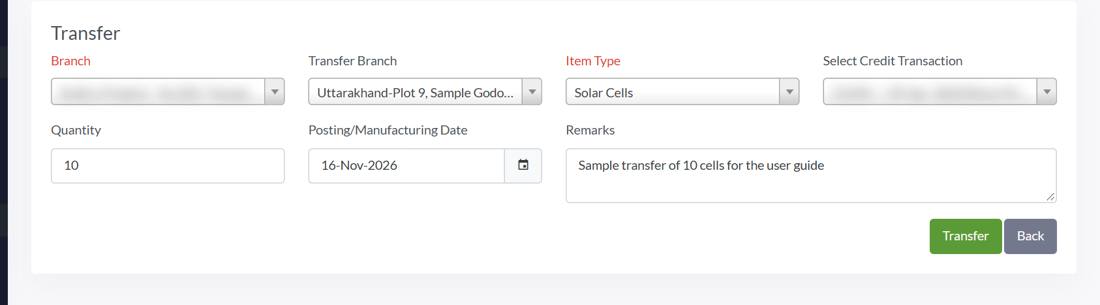
- Choose the Branch the stock leaves and the Transfer Branch it goes to.
- Choose the Item Type. In Select Credit Transaction choose where it comes from: for cells a stock entry (a conversion, a claim or an earlier transfer), for wafers and raw materials an approved purchase with a balance.
- Type the quantity, not more than is left, and a date not before that entry and not after today. Press Transfer and Yes.
- A wafer or raw material transfer creates an approved purchase named BT, the BOE number and the date in the other branch; Wafer to Cell there uses it like any purchase.
Q21I entered a conversion with the wrong item, model or quantity. How do I correct it?
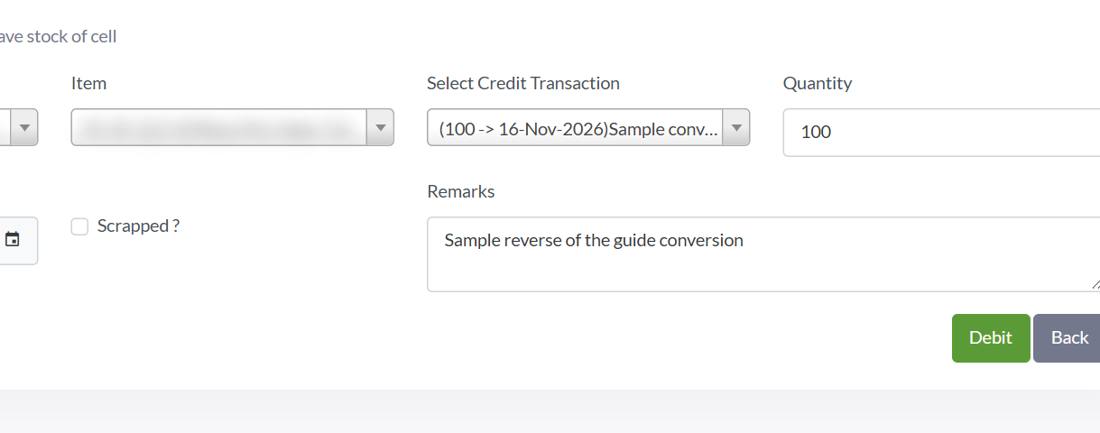
- Open DCR > Internal Stock Credit > Wafer to Cell (Reverse). Choose the branch and item.
- In Select Credit Transaction choose the wrong conversion; it shows the quantity still reversible.
- Leave Scrapped empty, so the wafers and raw materials come back. Press Debit, then Yes.
Q22The consumption per cell set in the portal does not match our process.
- Mono PERC per cell: Ammonia 0.3075 g, Silane 0.0890 g, Front paste 0.044 g, Rear paste 0.019 g, POCl3 0.0040 g, TMAl 0.0047 g (November 2026).
Account, users and menus10% of tickets
Company type, missing menus and logins.
Q23Items, BOE or Raw Material Purchase are missing from my menu.
- Listed in ALMM List-II but registered with another company type? Raise a ticket with the memorandum to change the type.
- Make both cells and modules? Ask for the type Both Solar-Cells and Solar-Panels Manufacturer.
Company Profile UpdatingWrite: The ALMM List-II memorandum showing your company.
Q24We are logged out again and again.
- Always press Logout when you finish; do not just close the browser.
- Create users in Users > Add User instead of sharing one login.
- The portal also logs you out after 45 minutes without activity.
Q25How do I change the email or mobile of a user?
- The main login is the one made when your company was approved. Its email, mobile and admin rights are locked for good and it cannot be disabled. Give the new person their own login with Users > Add User.
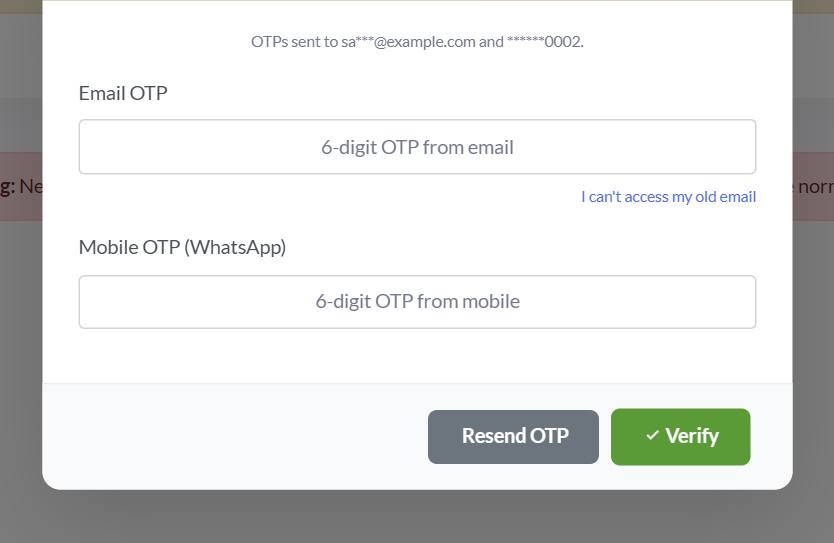
- For other users press Change Email / Mobile. Type the 6 digit OTP from the current email and the one from WhatsApp on the current mobile, and press Verify.
- Old email not working? Click I can't access my old email; the OTP then goes only to the mobile.
- Type the new email and confirm it with its own OTP (Verify), then press Save & Return. A notice goes to the old email and mobile.
Q26I cannot add a branch with another GST number.
- Branch > Add Branch accepts only GST numbers of your PAN.
Which category to choose for a ticket
| Problem | Support Category |
|---|---|
| BOE or raw material pending, rejected or wrong | Transaction Issue |
| Model or item not showing in Wafer to Cell | Item Type Not Visible |
| Cannot create a certificate | Cannot create DCR Certificate |
| Buyer wants to return or cancel a B2B certificate | Cerificate Return/Cancel B2B |
| Change buyer details on a certificate | Update/Change Customer Information in Certificate |
| Company type, name or GST | Company Profile Updating |
| Anything else | General Query / Others |
Need help? DCR support 7041452290 (Mon-Sat, 9:30 AM - 7:00 PM) | support@dcrverificationportal.com
सूची में अपनी समस्या ढूँढें, हरे बॉक्स में तुरंत जवाब पढ़ें और स्टेप करें। फिर भी अटके हैं? दी गई श्रेणी से टिकट डालें।
पिछले 180 दिनों में सेल निर्माताओं के सपोर्ट टिकट (सेल के काम से जुड़े लगभग 140) से बनाया गया। भाग उसी क्रम में हैं जिसमें वे सबसे ज़्यादा पूछे गए।
वेफर और कच्चे माल के अपलोड34% टिकट
मंज़ूरी का इंतज़ार, रिजेक्शन और शुरुआती स्टॉक टिकट के सबसे आम कारण हैं।
प्र1मेरा BOE या कच्चे माल की एंट्री Pending दिखा रहा है। कब मंज़ूर होगा?
- DCR > Wafers / Thin Glass Purchase या DCR > Raw Material Purchase में Status कॉलम देखें।
- जल्दी अपलोड करें। Pending खरीद Wafer to Cell में नहीं गिनी जाती।
- पूरा, पढ़ने योग्य दस्तावेज़ और ठीक छपे अनुसार लिखे नंबर सबसे जल्दी मंज़ूर होते हैं (Q3 और Q4 देखें)।
- कुछ जोड़ना हो तो अपलोड के बाद आए ईमेल का जवाब दे सकते हैं।
प्र2मेरा अपलोड रिजेक्ट हो गया। कारण कहाँ देखूँ?
- सूची खोलें, लाल रंग की Rejected पंक्ति ढूँढें और Approval Remarks पढ़ें।
- आम कारण: गलत या अधूरा दस्तावेज़, नंबर या तारीख छपे अनुसार नहीं, गलत मात्रा या यूनिट, गलत आइटम टाइप, E-Way Bill नहीं।
- Add BOE या Add Raw Material Purchase दबाएं और सही तरह फिर से दर्ज करें। रिजेक्ट एंट्री एडिट नहीं होती।
प्र3वेफर BOE के लिए ठीक-ठीक क्या अपलोड करना है?
- वह Branch जहाँ वेफर पहुँचे, Item Type Silicon-Wafers, सही Cell Technology और वेफर आकार।
- BOE नंबर: केवल अंक, कोई अतिरिक्त शब्द या विशेष चिह्न नहीं। BOE तारीख: BOE पर लिखी तारीख, इनवॉइस की नहीं।
- Quantity: BOE पर लिखी वेफर की सटीक संख्या। वेस्टेज खुद न घटाएं (Q6 देखें)।
- केवल कच्चे, बिना डिफ्यूज़ किए वेफर, HSN कोड 38180010, स्वीकार होते हैं। BOE विवरण से स्पष्ट न हो तो सहायक दस्तावेज़ जोड़ें।
- इस खरीद का BOE नहीं है? इनवॉइस के साथ हस्ताक्षर-मुहर वाला स्व-घोषणा पत्र जोड़ें कि BOE नहीं है।
प्र4कच्चे माल की खरीद के लिए क्या अपलोड करना है? कौन सी यूनिट लूँ?
- पहले Domestic या Import चुनें; बॉक्स के नाम Invoice या BOE हो जाते हैं।
- इनवॉइस, चालान या BOE नंबर ठीक छपे अनुसार, डैश सहित, लिखें, और घरेलू खरीद के लिए 12 अंकों का E-Way Bill नंबर।
- आइटम इनवॉइस के विवरण जैसा चुनें, जैसे Front Silver Paste Mono Perc या TopCon।
- फ्रंट और बसबार पेस्ट एक ही एंट्री में जोड़ें, क्योंकि पोर्टल दोनों को फ्रंट सिल्वर पेस्ट मानता है; रियर पेस्ट के लिए भी यही।
- इनपुट यूनिट Kg या Grams चुनें। पोर्टल केमिकल और पेस्ट ग्राम में और RCA cleaning additive ml में रखता है।
प्र5कच्चे माल का शुरुआती स्टॉक कैसे अपलोड करूँ? MIS रिपोर्ट क्या है?
- DCR > Raw Material Purchase > Add Raw Material Purchase खोलें।
- हर माल की एक एंट्री, आयातित और स्थानीय मात्रा मिलाकर। इसे कई इनवॉइस में न बाँटें और एक ही माल दो बार न भेजें।
- MIS रिपोर्ट आपकी ERP स्टॉक रिपोर्ट है जो कट-ऑफ़ तारीख पर माल का क्लोज़िंग बैलेंस दिखाती है, लगभग एक महीने के ट्रांज़ैक्शन के साथ, PDF में।
- कट-ऑफ़ के बाद की खरीद अपने इनवॉइस और E-Way Bill के साथ अलग एंट्री में जाती है।
प्र6मेरे वेफर BOE की Quantity Available खरीद से कम है और BOM Wafer Consumption दिखता है। क्यों?
- उदाहरण: 1,02,600 मानक Mono PERC वेफर से 1,00,000 बदलने के लिए बचते हैं।
- मंज़ूरी के ईमेल में Purchased Quantity, लाल रंग में Waste Deducted (BOM) और हरे रंग में Available Quantity दिखती है।
- BOE सूची में Transaction दबाएं: पहली पंक्ति, BOE Approval - BOM Wafer Consumption, यही वेस्टेज है। बाद की हर पंक्ति Wafer to Cell या रिवर्स है।
प्र7मैंने गलत दस्तावेज़ या गलत मात्रा अपलोड कर दी। क्या बदल सकता हूँ?
- BOE या इनवॉइस नंबर और क्या गलत है, लिखकर टिकट डालें।
- रिजेक्ट होने के बाद सही फ़ाइल और मानों के साथ खरीद दोबारा जोड़ें।
Transaction Issueलिखें: BOE या इनवॉइस नंबर, क्या गलत था, और सही दस्तावेज़।
प्र8मेरा वेफर आकार सूची में नहीं है।
- आकार महत्वपूर्ण है: कच्चे माल की खपत तकनीक के मानक आकार की तुलना में वेफर के क्षेत्रफल से बदलती है।
आपके जारी किए सर्टिफिकेट32% टिकट
सर्टिफिकेट रद्द करना, सुधारना और पते अगले आम कारण हैं।
प्र9गलती से जारी सर्टिफिकेट रद्द या डिलीट कर दें।
- DCR > Sell (B2B - Vendor) खोलें और सर्टिफिकेट खोजें।
- Un-Claimed: पेंसिल आइकन दबाएं और सुधारें।
- Claimed: खरीदार से अपने लॉगिन में DCR > Claimed से इसे लौटाने को कहें; सेल आपके स्टॉक में लौट आते हैं।
प्र10क्या हम वेफर या कच्चे माल का सर्टिफिकेट जारी कर सकते हैं? या B2C सर्टिफिकेट?
- DCR > Sell (B2B - Vendor) > Issue to Vendor। Item Type में Solar Cells, Silicon-Wafers या कच्चा माल चुनें।
- वेफर और कच्चे माल के लिए Item में बैलेंस वाली मंज़ूर खरीद दिखती हैं; एक चुनें और उसके बैलेंस तक मात्रा लिखें, फिर Add।
- खरीदार और इनवॉइस भरें, Confirm और Yes दबाएं। मात्रा उस खरीद और आपके स्टॉक से निकल जाती है।
प्र11पोर्टल अब सर्टिफिकेट एडिट नहीं करने देता।
- Edit पेज के ऊपर का लाल नोट बताता है कितने आइटम-एडिट बचे हैं।
- दूसरी जानकारी, जैसे PO रेफ़रेंस या संपर्क व्यक्ति, Un-Claimed रहते बदली जा सकती है।
- दूसरे आइटम-एडिट से पहले मात्राएँ ध्यान से जाँचें।
प्र12सर्टिफिकेट पर खरीदार का पता गलत है।
- अगर खरीदार की उस राज्य की ब्रांच नहीं है, तो उनसे अपने लॉगिन में जोड़ने को कहें; तब तक उनके PAN का पता इस्तेमाल होता है।
- खरीदार का GST या PAN बदलने के लिए GST और PAN दस्तावेज़ सपोर्ट को भेजें।
Update/Change Customer Information in Certificateलिखें: सर्टिफिकेट नंबर और सही पते वाला GST दस्तावेज़।
प्र13सर्टिफिकेट पर कौन सा सेल मॉडल छपता है?
- पोर्टल इसे बाद में नहीं बदलता। हर Wafer to Cell एंट्री में सही मॉडल चुनें।
- किसी कन्वर्ज़न में गलत मॉडल: सेल स्टॉक में रहते उस कन्वर्ज़न को रिवर्स करें और फिर से दर्ज करें (Q21)।
ALMM II मॉडल और आइटम नहीं दिख रहे17% टिकट
लगभग हर 'आइटम नहीं दिख रहा' टिकट ALMM II सीमा से समझ आता है।
प्र14Wafer to Cell में मेरा सेल आइटम कोड नहीं दिख रहा।
- पहले मॉडल चुनें; सीमा उसके नाम के पास लिखी होती है, जैसे 7.26 से 7.76 Wp, एफ़िशिएंसी 22.00 से 23.50 प्रतिशत।
- Items खोलें और अपने आइटम का Wp, एफ़िशिएंसी और सेल टेक्नोलॉजी जाँचें।
- कई मॉडल हैं तो दूसरा मॉडल आज़माएं: आइटम उसमें आ सकता है।
- आइटम में गलत मान है? सही Wp और एफ़िशिएंसी के साथ नया आइटम बनाएं।
प्र15अब हम ALMM II मॉडल की एफ़िशिएंसी से ऊपर के सेल बनाते हैं। क्या उन्हें अनुमति देंगे?
- अपनी सूचीबद्धता के संशोधन के लिए MNRE में आवेदन करें।
- संशोधित ALMM List-II प्रकाशित होने के बाद ऑफ़िस मेमोरेंडम के साथ टिकट डालें ताकि NISE आपका मॉडल अपडेट करे।
Item Type Not Visibleलिखें: ALMM List-II ऑफ़िस मेमोरेंडम और मॉडल की नई सीमा।
प्र16हमारा नया मॉडल (जैसे G12R) ALMM List-II में है पर पोर्टल में नहीं।
- आप खुद मॉडल जोड़ या बदल नहीं सकते।
- उस मॉडल के वेफर के BOE तभी मंज़ूर हो सकते हैं जब मॉडल पोर्टल में हो।
Item Type Not Visibleलिखें: मॉडल का नाम, टेक्नोलॉजी, Wp और एफ़िशिएंसी सीमा, और ALMM List-II मेमोरेंडम।
प्र17ALMM II Enlisted Model सूची खाली है।
- पहले BOE चुनें, फिर पोस्टिंग तारीख; मॉडल सूची दोनों से भरती है।
- अपने मॉडल की वैधता अवधि के भीतर की तारीख आज़माएं।
- BOE पर लिखी Cell Technology जाँचें; TopCon BOE में केवल TopCon मॉडल दिखते हैं।
- फिर भी खाली: सपोर्ट से अपने मॉडल की तारीख और टेक्नोलॉजी जाँचने को कहें।
Wafer to Cell और स्टॉक7% टिकट
स्टॉक की त्रुटियाँ और रिवर्स।
प्र18Wafer to Cell कहता है कोई कच्चा माल उपलब्ध नहीं, पर हमारे पास है।
- जाँचें कि आपने वही ब्रांच चुनी जिसमें माल अपलोड हुआ।
- जाँचें कि खरीद Approved है, Pending नहीं।
- एरर विंडो पढ़ें: Required, Available और माल से कितने सेल बन सकते हैं। मात्रा घटाएं या कम खरीद अपलोड करें।
- माल दूसरी ब्रांच में है? Branch Transfer से भेजें।
प्र19कितना कच्चा माल खपत हुआ, कैसे जाँचें?
- Stock Summary: माल खोजें और Transaction दबाएं। हर पंक्ति एक खरीद है; Quantity में से Balance घटाने पर उससे हुई खपत मिलती है।
- Raw Material Purchase सूची: किसी इनवॉइस पर Transaction दबाएं और उसे इस्तेमाल करने वाली हर Wafer to Cell एंट्री सटीक मात्रा के साथ देखें।
- हर कन्वर्ज़न में खपत: NISE द्वारा तय प्रति सेल खपत, गुणा वेफर आकार फ़ैक्टर, गुणा वेफर। उदाहरण, 182.2 x 182.2 mm वेफर पर 100 Mono PERC सेल: Ammonia 30.49 g।
- माल पहले सबसे पुरानी मंज़ूर खरीद से लिया जाता है।
प्र20सेल, वेफर या कच्चा माल दूसरी ब्रांच में कैसे भेजूँ?
- वह Branch चुनें जहाँ से स्टॉक जाएगा और Transfer Branch जहाँ जाएगा।
- Item Type चुनें। Select Credit Transaction में चुनें कि कहाँ से आ रहा है: सेल के लिए स्टॉक एंट्री (कन्वर्ज़न, क्लेम या पहले का ट्रांसफ़र), वेफर और कच्चे माल के लिए बैलेंस वाली मंज़ूर खरीद।
- मात्रा लिखें, बचे से अधिक नहीं, और तारीख, उस एंट्री से पहले नहीं और आज के बाद नहीं। Transfer और Yes दबाएं।
- वेफर या कच्चे माल के ट्रांसफ़र से दूसरी ब्रांच में BT, BOE नंबर और तारीख नाम की मंज़ूर खरीद बनती है; वहाँ Wafer to Cell इसे किसी भी खरीद की तरह इस्तेमाल करता है।
प्र21मैंने गलत आइटम, मॉडल या मात्रा से कन्वर्ज़न दर्ज किया। कैसे सुधारूँ?
- DCR > Internal Stock Credit > Wafer to Cell (Reverse) खोलें। ब्रांच और आइटम चुनें।
- Select Credit Transaction में गलत कन्वर्ज़न चुनें; उसमें अभी रिवर्स हो सकने वाली मात्रा दिखती है।
- Scrapped खाली छोड़ें, ताकि वेफर और कच्चा माल लौट आए। Debit दबाएं, फिर Yes।
प्र22पोर्टल में तय प्रति सेल खपत हमारी प्रक्रिया से मेल नहीं खाती।
- Mono PERC प्रति सेल: Ammonia 0.3075 g, Silane 0.0890 g, Front paste 0.044 g, Rear paste 0.019 g, POCl3 0.0040 g, TMAl 0.0047 g (नवंबर 2026)।
अकाउंट, यूज़र और मेनू10% टिकट
कंपनी टाइप, न दिखने वाले मेनू और लॉगिन।
प्र23मेरे मेनू में Items, BOE या Raw Material Purchase नहीं है।
- ALMM List-II में हैं पर दूसरे कंपनी टाइप से पंजीकृत? टाइप बदलने के लिए मेमोरेंडम के साथ टिकट डालें।
- सेल और मॉड्यूल दोनों बनाते हैं? Both Solar-Cells and Solar-Panels Manufacturer टाइप माँगें।
Company Profile Updatingलिखें: आपकी कंपनी दिखाने वाला ALMM List-II मेमोरेंडम।
प्र24हम बार-बार लॉग आउट हो जाते हैं।
- काम पूरा होने पर हमेशा Logout दबाएं; केवल ब्राउज़र बंद न करें।
- एक लॉगिन साझा करने के बजाय Users > Add User से यूज़र बनाएं।
- 45 मिनट कोई काम न करने पर भी पोर्टल लॉग आउट कर देता है।
प्र25किसी यूज़र का ईमेल या मोबाइल कैसे बदलूँ?
- मुख्य लॉगिन वह है जो कंपनी की मंज़ूरी पर बना। इसका ईमेल, मोबाइल और एडमिन अधिकार हमेशा के लिए लॉक हैं और इसे बंद नहीं किया जा सकता। नए व्यक्ति को Users > Add User से उसका अपना लॉगिन दें।
- दूसरे यूज़र के लिए Change Email / Mobile दबाएं। मौजूदा ईमेल का 6 अंकों का OTP और मौजूदा मोबाइल पर WhatsApp का OTP डालें, और Verify दबाएं।
- पुराना ईमेल काम नहीं करता? I can't access my old email दबाएं; तब OTP केवल मोबाइल पर जाता है।
- नया ईमेल लिखें और उसके अपने OTP से पुष्टि करें (Verify), फिर Save & Return दबाएं। सूचना पुराने ईमेल और मोबाइल पर जाती है।
प्र26मैं दूसरे GST नंबर वाली ब्रांच नहीं जोड़ पा रहा।
- Branch > Add Branch में केवल आपके PAN के GST नंबर स्वीकार होते हैं।
टिकट के लिए कौन सी श्रेणी चुनें
| समस्या | Support Category |
|---|---|
| BOE या कच्चा माल Pending, रिजेक्ट या गलत | Transaction Issue |
| Wafer to Cell में मॉडल या आइटम नहीं दिख रहा | Item Type Not Visible |
| सर्टिफिकेट नहीं बन रहा | Cannot create DCR Certificate |
| खरीदार B2B सर्टिफिकेट लौटाना या रद्द करना चाहता है | Cerificate Return/Cancel B2B |
| सर्टिफिकेट पर खरीदार की जानकारी बदलना | Update/Change Customer Information in Certificate |
| कंपनी टाइप, नाम या GST | Company Profile Updating |
| कुछ और | General Query / Others |
सहायता चाहिए? DCR सपोर्ट 7041452290 (सोम-शनि, सुबह 9:30 - शाम 7:00) | support@dcrverificationportal.com